




Before you start
- Turn on VoiceOver in the iPhone Settings › Accessibility › VoiceOver, or ask Siri: “Turn on VoiceOver”. Setting the Accessibility Shortcut lets you triple-click the side button to switch it on and off.
- Open OutBrick. Home reads first; the Play level button starts your current board, and a two-finger double tap on Home does the same.
- The first time you meet a new idea, a short teaching card explains it. It is the only thing on screen while it shows: double-tap to start playing.
Wskazówka
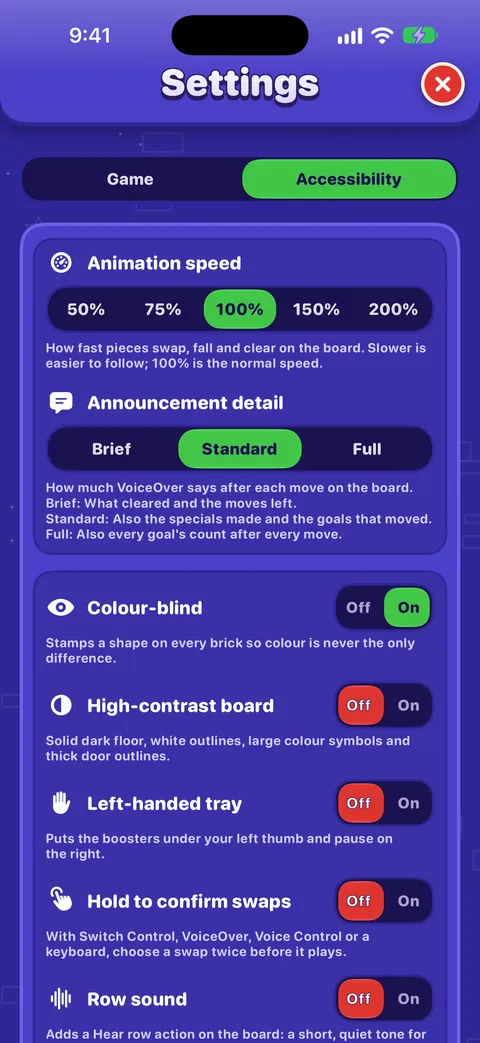
In the game’s Settings › Accessibility, Announcement detail sets how much you hear after each move. Standard is a good place to start; you can change it at any time.
How the board reads
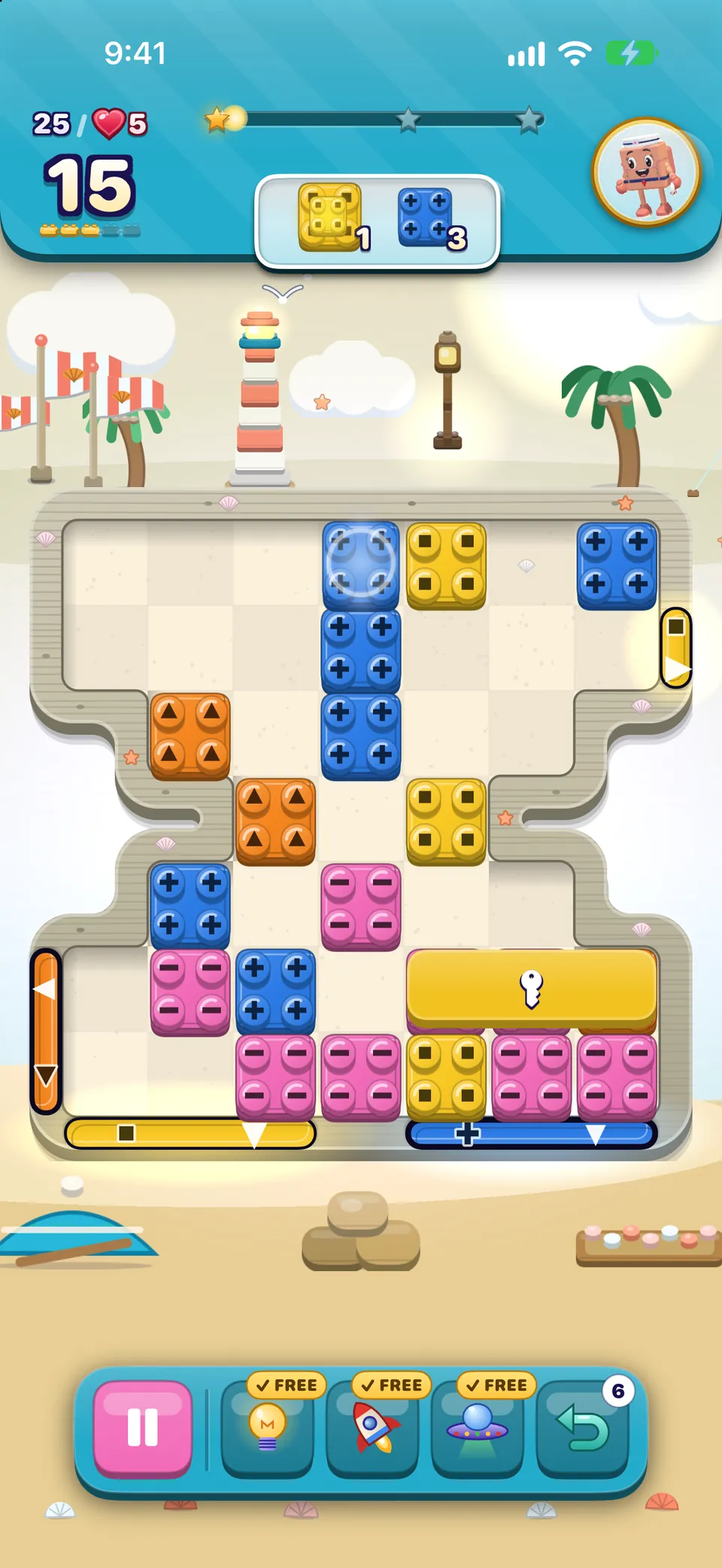
- The Board summary comes first. It reads the level, its name, the stage, the goals and the moves left. Double-tap it to hear the whole board read out with a hint.
- Then every cell, row by row, from the top left. Gaps in a board’s shape are skipped. Each cell’s value is its place, for example “Row 3, column 2”.
- Pieces are named by kind, colour and state, never by colour alone: “Red bomb”, “Crate, 2 layers”, “Yellow brick, locked, a line through it frees it”, “Red long brick, 2 tall”.
- Extras follow the piece: “in front of the red gate”, “red gate to the left”, “portal entrance below”, “counts for Daffodil, yellow” when a goal needs it. An empty cell says “Empty”.
- Gates are their own elements, for example “Red gate, 2 cells wide, left side, rows 3 to 4”, and their value says whether they are open, iced, need more bricks, or are closed for good.
- Face-down bricks never tell you their colour: “Face-down brick, turns over when a brick next to it leaves the board”. That is fair play, not a missing label.
Dobrze wiedzieć
Pieces you can move are buttons. Blockers and fixtures, like stone or crates, read as text, so you can tell at a glance what can move.
Making a move
There are two ways to move, and you can mix them.
With actions (fastest)
- Put VoiceOver on a piece.
- Swipe up or down to hear its actions, such as “Slide left, out through the red gate”, “Slide up to the end, 3 cells” or “Swap up with blue brick”. Working swaps come first; a swap that would make nothing says “no match”.
- Double-tap to play the action you heard.
By choosing a piece, then a direction
- Double-tap a piece. VoiceOver says “Chosen. Choose a direction to slide it, or a neighbour to swap”.
- Direction controls appear over its neighbours. Move to one and double-tap it.
- Changed your mind? Double-tap the same piece again (“Put down”), or use the two-finger scrub.
| Action | When you hear it |
|---|---|
| Activate special | On a special brick that can be set off where it stands. |
| Slide… | Up to three per direction, up, down, left, right: how far it goes, and whether it leaves through a gate or a portal. |
| Swap… | With each neighbour. Swaps that match come first; “no match” marks the rest. |
| Read the board | Level, stage, goals, moves left and a hint. |
| Hint | Shows and says the best move. |
| Hear row | Only when Row sound is on: a quiet tone per piece across the row. |
Wskazówka
Worried about playing a move by mistake? Turn on Hold to confirm swaps. The first choice asks “…? Choose it again to confirm”, and the move only plays if you choose it again within five seconds.
Rotors: jump straight to what matters
Twist two fingers on the screen to pick a rotor, then swipe up or down to jump between matching pieces.
- Pieces that can match
- Pieces with a move that makes a match right now.
- Specials
- Bombs, line blasters and the other special bricks.
- Goals
- Pieces your goals are asking for.
- Blockers
- Crates, stone, ice, locks, moss and anything else in the way.
- Gates
- Every gate on the board, when the board has them. The first gate board you play tells you about this rotor once.
Each element also has More Content (in the rotor, choose More Content, then swipe up or down): the special, the gate, the blocker, jelly layers underneath, and whether a goal needs this piece.
Gestures, screen by screen
| Gesture | On a board | On the Journey map | Elsewhere |
|---|---|---|---|
| Two-finger double tap (Magic Tap) | A free hint. The best move shimmers and is spoken; your Hint booster is not used. | Speaks the guide: your village, levels cleared, your next level and stars to the next reward. | Home: plays your next level. Shop, Leaders and Pass: switches the music on or off. |
| Two-finger scrub (Escape) | Never leaves the board, so it can never cost a life. It closes a card, puts down a chosen piece, puts away a teaching card, or opens Pause, in that order. | Closes an open card. | Presses the screen’s close button or goes back. |
| Three-finger swipe | — | Moves one village at a time and says its name. | Scrolls. |
| Swipe up or down | Steps through a piece’s actions. | Steps through Where am I and Go to my next level. | Adjusts a control. |
What you hear after a move
As soon as a move is decided, VoiceOver says one sentence about it, before the animation finishes. Anything urgent comes first.
- Where a brick went: “Slid 3 cells, to row 2, column 4”, “Through the portal, out at…”, “1 red out through its gate”.
- What changed: “Turned over: red and blue”, “The counter lid opened. Its bricks can move”, “New gates open”.
- What cleared: pieces, cascades, combos and any specials made, and which goals moved.
- Moves left, with a warning at five, three and one: “Only 5 moves left”.
- The end: “Every goal done. Level complete” or “Out of moves”.
- If no move is possible, the board reshuffles and says “The board shuffled. Your move.”
| Choice | What you hear |
|---|---|
| Brief | What cleared, any goal that finished, and the moves left. |
| Standard | Also the specials you made and the goals that moved. |
| Full | Also every goal’s count after every move. |
Dobrze wiedzieć
A swap that makes nothing springs back and says “No match, swapped back. No move used”. You have lost nothing.
Hints
- Asking: the two-finger double tap, the Hint action, or H on a keyboard. The hint is spoken, for example “Hint: slide red brick, row 1, column 3, left, out through its gate”, and VoiceOver moves to that piece.
- Free: a hint you ask for with the two-finger double tap or the action never uses a Hint booster from the tray.
- Idle hints: if you pause for a while, a quiet hint may be spoken without moving your focus.
Finding your way on the Journey
- Every element on the map has two actions: Where am I and Go to my next level, which scrolls the map and puts VoiceOver on your next level.
- The two-finger double tap speaks the guide, for example “Garden City, 7 of 12 levels cleared. Next: level 8. 3 stars to the village reward.”
- A locked level says how far away it is: “4 more to unlock”.
- Swipe with three fingers to move a village at a time.
More about the map in The Journey and its villages.
Tips from the team
- With VoiceOver on and Animation speed at 100%, moves play one and a half times faster, so you are not waiting. Choose any other speed and the game uses yours exactly.
- Turn on Row sound to hear a whole row as tones: each colour symbol has its own pitch, blockers make a low knock and empty cells are silent. It needs sound effects on and the Ring/Silent switch on ring.
- Lost? Double-tap the Board summary at the top, or use Read the board.
- Menus: every button reads its printed words, and cards trap VoiceOver inside them until you close them, so you never end up behind a card.
Something did not read right?
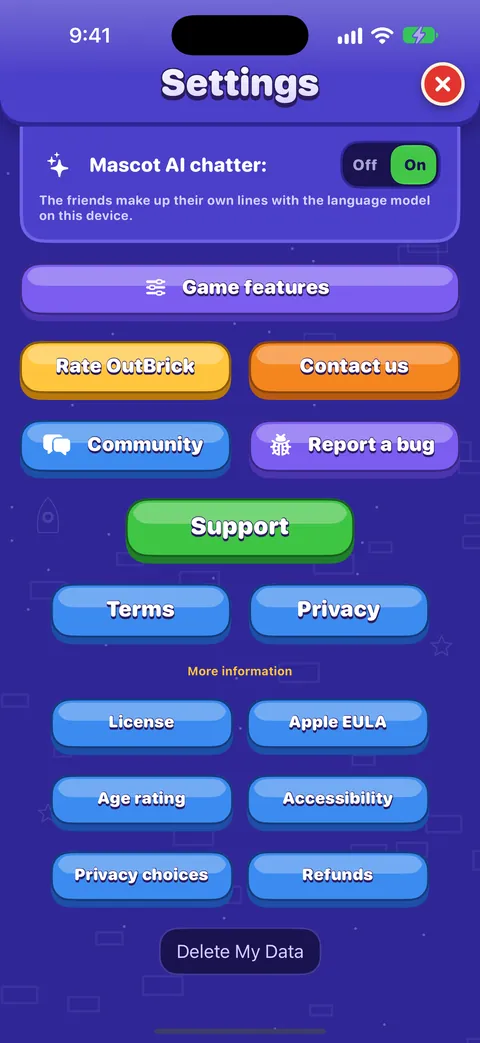
Tell us the level, the piece and the exact words VoiceOver said in the Accessibility category, or use Settings › Report a bug in the game.
Czy ten poradnik był pomocny?
Keep reading
Accessibility in OutBrick: start here
Every way OutBrick adapts to you, from VoiceOver and Switch Control to colour-blind symbols, a high-contrast board, slower animation and no timers, with a starting point for your needs.Voice Control, Switch Control and keyboards
Play every board with your voice, with one or more switches, or with the arrow keys, and use Hold to confirm swaps and the Left-handed tray to make it comfortable.Gra na planszy
Every part of the board screen, how sliding and swapping work, what counts as a move, how stars and score work, and what Hard, Super Hard, Boss and Night boards mean.Reporting a bug well
The fastest way to get a bug fixed: report it from inside the game so your details are filled in, write steps someone else can follow, and add exactly what VoiceOver or another assistive technology did.
Każdą wiadomość czyta ktoś z zespołu. Staramy się odpowiadać w ciągu dwóch dni roboczych.
Nadal nie wiesz, jak dalej?
Nadal nie wiesz, jak dalej?
Zapytaj w społeczności. Zespół i inni gracze odpowiadają publicznie, a twój adres e-mail nigdy nie jest pokazywany.
Zapytaj społecznośćBłąd w grze?
Dobre zgłoszenie szybciej zostaje naprawione. Formularz błędu pyta dokładnie o to, czego potrzebujemy.
Zgłoś błądWolisz napisać prywatnie?
Formularz kontaktowy trafia prywatnie do tego samego zespołu. Używaj go w sprawie zakupów i spraw osobistych.
Skontaktuj się z pomocą