




Built to be played your way
OutBrick is a calm puzzle game with no clock anywhere: you can take as long as you like over every move. Each board can be read and played with VoiceOver, Voice Control, Switch Control or a keyboard, and the game has its own Accessibility settings for vision, motion and hand reach. It also follows the accessibility settings you have already chosen on your iPhone or iPad.
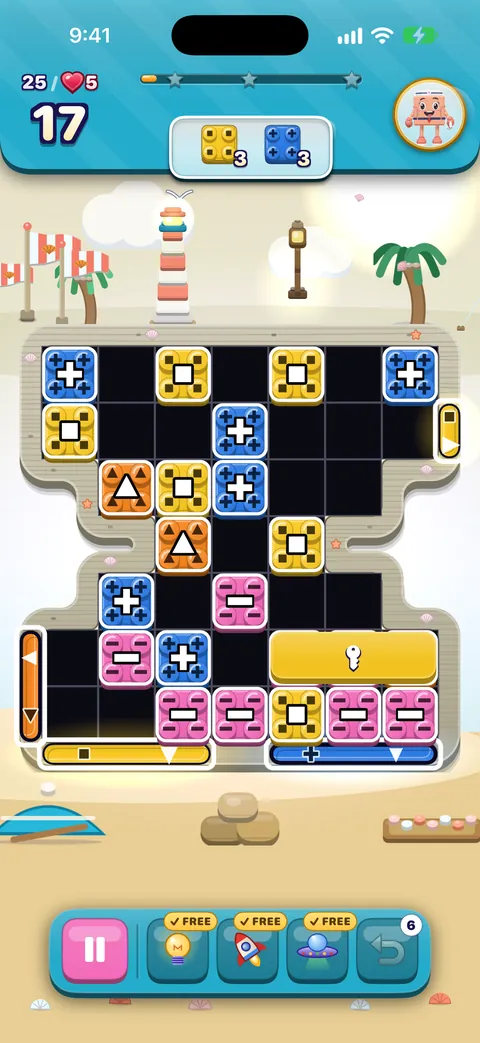
- Colour is never the only clue. Colour-blind symbols are on from the start, and every brick, gate and goal can carry a shape. See Vision, hearing and motion.
- Every piece has a name. VoiceOver reads a piece’s kind, colour and state, for example “Blue line blaster, horizontal, clears its row”, and a face-down brick never gives its colour away.
- Move your way. Slide or swap with a touch, with VoiceOver actions, by saying “Slide red 14 left”, with switches, or with the arrow keys.
- Time to think. No timers, an Animation speed setting from 50% to 200%, and an optional Hold to confirm swaps so nothing plays by accident.
- Nothing to hear that you cannot also see. The friends talk in text bubbles, not voices, and every sound has something on screen to match it.
Where the settings live
- On Home or the Journey, tap the gear in the top right corner. With VoiceOver, it is the Settings button.
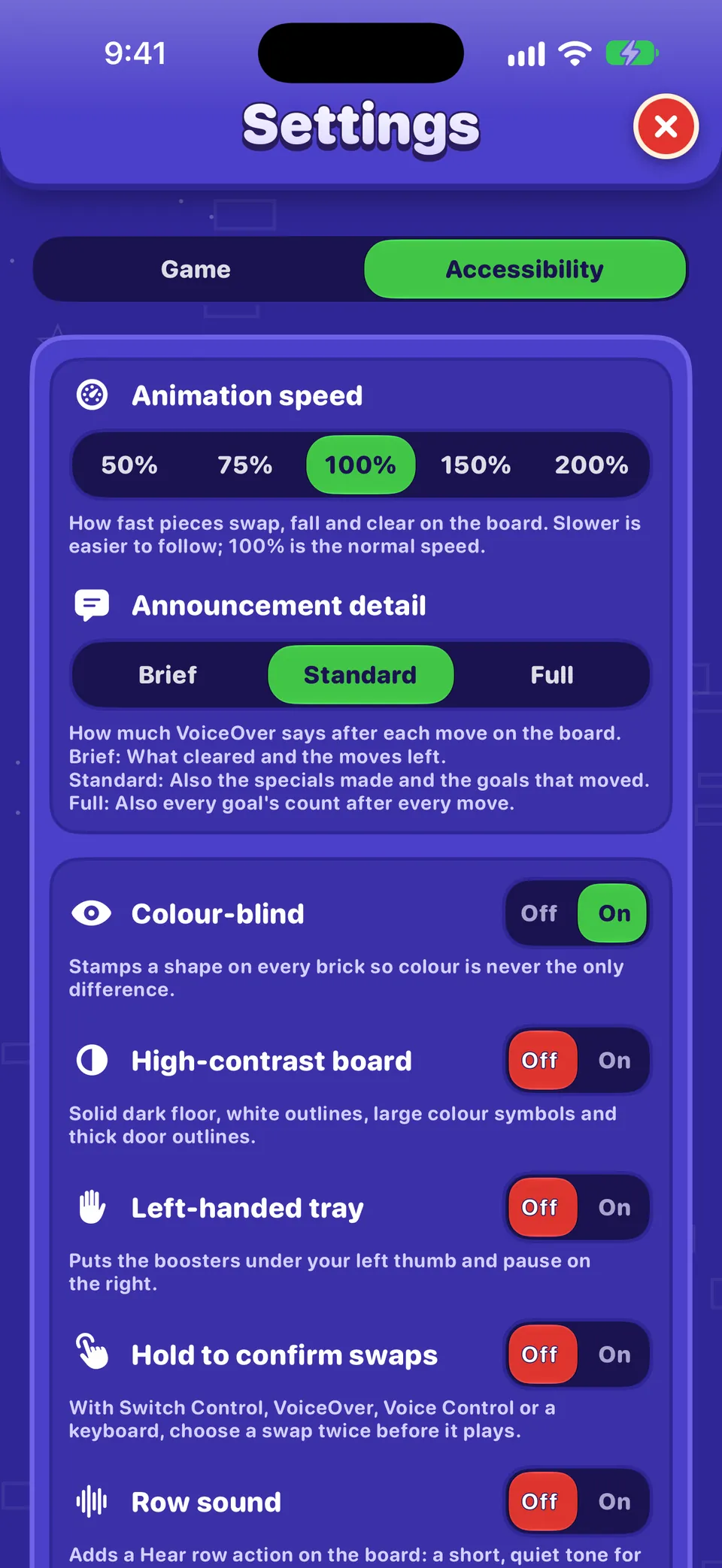
- At the top of Settings, choose the Accessibility tab. (The Game tab holds sound, music, haptics and notifications; see Every setting explained.)
- Change one thing at a time, then play a board you know to feel the difference.
Petua
You can open this tab directly: search Spotlight for “Accessibility settings” and choose the OutBrick result.
| Setting | What it does | Starts as |
|---|---|---|
| Animation speed | How fast pieces swap, fall and clear: 50%, 75%, 100%, 150% or 200%. Slower is easier to follow. | 100% |
| Announcement detail | How much VoiceOver says after each move: Brief, Standard or Full. | Standard |
| Buta warna | Stamps a shape on every brick so colour is never the only difference. | On |
| High-contrast board | A solid dark floor, white outlines, large colour symbols and thick door outlines. | Off |
| Left-handed tray | Puts the boosters under your left thumb and Pause on the right. | Off |
| Hold to confirm swaps | With Switch Control, VoiceOver, Voice Control or a keyboard, you choose a move twice before it plays. | Off |
| Row sound | Adds a Hear row action on the board: a short, quiet tone for each piece, one pitch per colour symbol. | Off |
Baik untuk diketahui
Colour-blind is saved to iCloud and follows you to your other devices. The other board settings stay on the device where you chose them, because what suits an iPad may not suit an iPhone.
A starting point for your needs
Everyone is different, so treat these as suggestions to try, not rules.
| If you… | Try this first |
|---|---|
| are blind or use VoiceOver | Read Playing with VoiceOver. Keep Announcement detail on Standard to begin with, and try Row sound to scan a row by ear. |
| have low vision | Turn on High-contrast board, raise Larger Text in iPhone Settings, and touch and hold the board header or tray to magnify it. |
| see colours differently | Leave Colour-blind on: every colour has its own shape. High-contrast makes those shapes larger. |
| are sensitive to motion or flashing | Turn on Reduce Motion and Dim Flashing Lights in iPhone Settings, and set Animation speed to 75% or 50%. |
| play with one hand or have limited reach | Try Left-handed tray if you hold the phone in your left hand, and Hold to confirm swaps if a slip of the finger could play a move. |
| use switches, your voice or a keyboard | Read Voice Control, Switch Control and keyboards. |
| are deaf or hard of hearing | Nothing in OutBrick depends on sound. Friends talk in text bubbles, and Haptics let you feel moves land. |
| like time to think | There is no timer anywhere. Slow the Animation speed and use hints whenever you like. |
iPhone and iPad settings OutBrick follows
These live in the iPhone or iPad Settings app under Accessibility, and OutBrick responds to them on its own.
- VoiceOver
- Every board, menu and card is labelled. See Playing with VoiceOver.
- Teks Lebih Besar
- Text grows up to the largest accessibility size, and layouts stack so nothing is cut off. The board header and tray support the Large Content Viewer: touch and hold to see a magnified label.
- Bold Text
- Screens redraw in bold as soon as you switch it on.
- Increase Contrast and Reduce Transparency
- Glassy controls such as the Off/On switches turn solid, with stronger edges.
- Kurangkan Gerakan
- Idle board motion stops, glows hold still, hints shimmer instead of moving, and the little critters stay home.
- Dim Flashing Lights
- Full-screen flashes drop to a third of their strength and never come closer together than about a third of a second.
- Differentiate Without Color
- Turns the colour-blind symbols on, even if you switched them off in the game.
- Smart Invert
- The friends, flags and artwork keep their real colours.
- Voice Control and Switch Control
- Both can play every board. See Voice Control, Switch Control and keyboards.
No clocks, no rush
There is no timer on any board, menu or event in OutBrick. Each board gives you a number of moves, and that is the only limit. A move only counts when it actually does something: a swap that makes no match springs back and does not use a move.
If you get stuck, ask for a hint. With VoiceOver, the two-finger double tap on a board gives you a hint for free, without using a Hint booster. See Boosters, hints and Pause.
What we are still testing
We would rather tell you plainly than have you find out the hard way. VoiceOver and Voice Control have been played on a real iPhone by the team. These have been built and checked in code, but not yet played end to end by hand on a device:
- Switch Control on the Slide & Match boards.
- Full Keyboard Access on iPad and Mac.
- The Large Content Viewer on the board header and tray at the very largest text size.
- Apple TV and Apple Watch, which do not yet have the new board’s accessibility work.
You can help
If you play with any of these, tell us what works and what does not in the Accessibility category. The team reads it most closely.
Tell us when something gets in your way
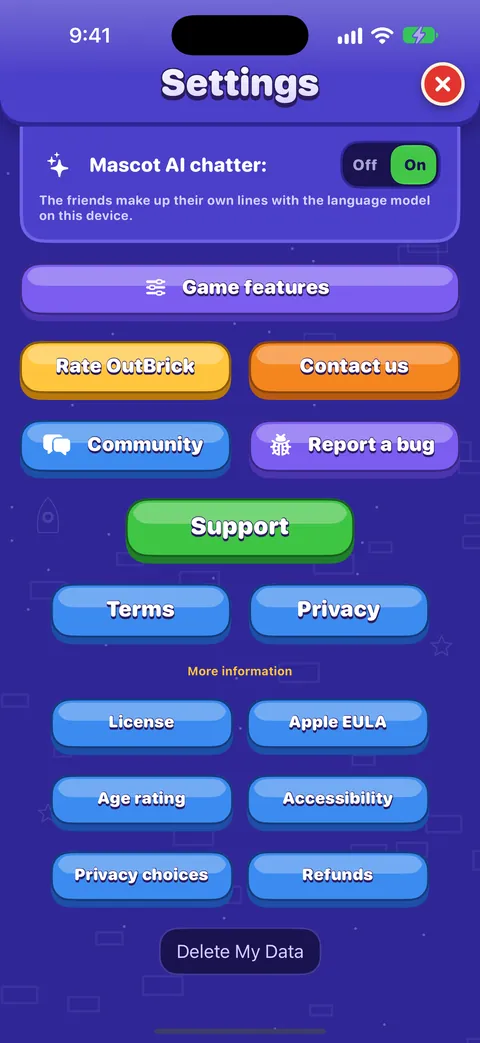
In the game, Settings › Report a bug opens a report in Safari with your device, iOS version, game version, level and the assistive technology you have switched on already filled in. It never sends your name or account. Add the exact words VoiceOver said, or the control that did not respond. See Reporting a bug well.
Adakah panduan ini membantu?
Keep reading
Bermain dengan VoiceOver
How the board reads, how to slide and swap with actions, the rotors, every gesture, what you hear after a move and how to get a free hint.Vision, hearing and motion
Colour-blind symbols and what each shape means, the high-contrast board, larger text, Reduce Motion, flashing lights, sound, haptics and Row sound.Voice Control, Switch Control and keyboards
Play every board with your voice, with one or more switches, or with the arrow keys, and use Hold to confirm swaps and the Left-handed tray to make it comfortable.Every setting explained
Each switch and button on the Game and Accessibility tabs of Settings, what it does, what it starts as, and where the support, community and privacy links lead.
Seorang ahli pasukan membaca setiap mesej. Kami berusaha membalas dalam tempoh dua hari bekerja.
Masih tersekat?
Masih tersekat?
Tanya dalam komuniti. Pasukan dan pemain lain menjawab secara terbuka, dan alamat e-melmu tidak pernah ditunjukkan.
Tanya komunitiJumpa pepijat?
Laporan yang baik dibaiki lebih cepat. Borang pepijat meminta tepat apa yang kami perlukan.
Lapor pepijatLebih suka menulis secara peribadi?
Borang hubungan sampai kepada pasukan yang sama, secara peribadi. Gunakannya untuk pembelian dan apa-apa yang peribadi.
Hubungi sokongan